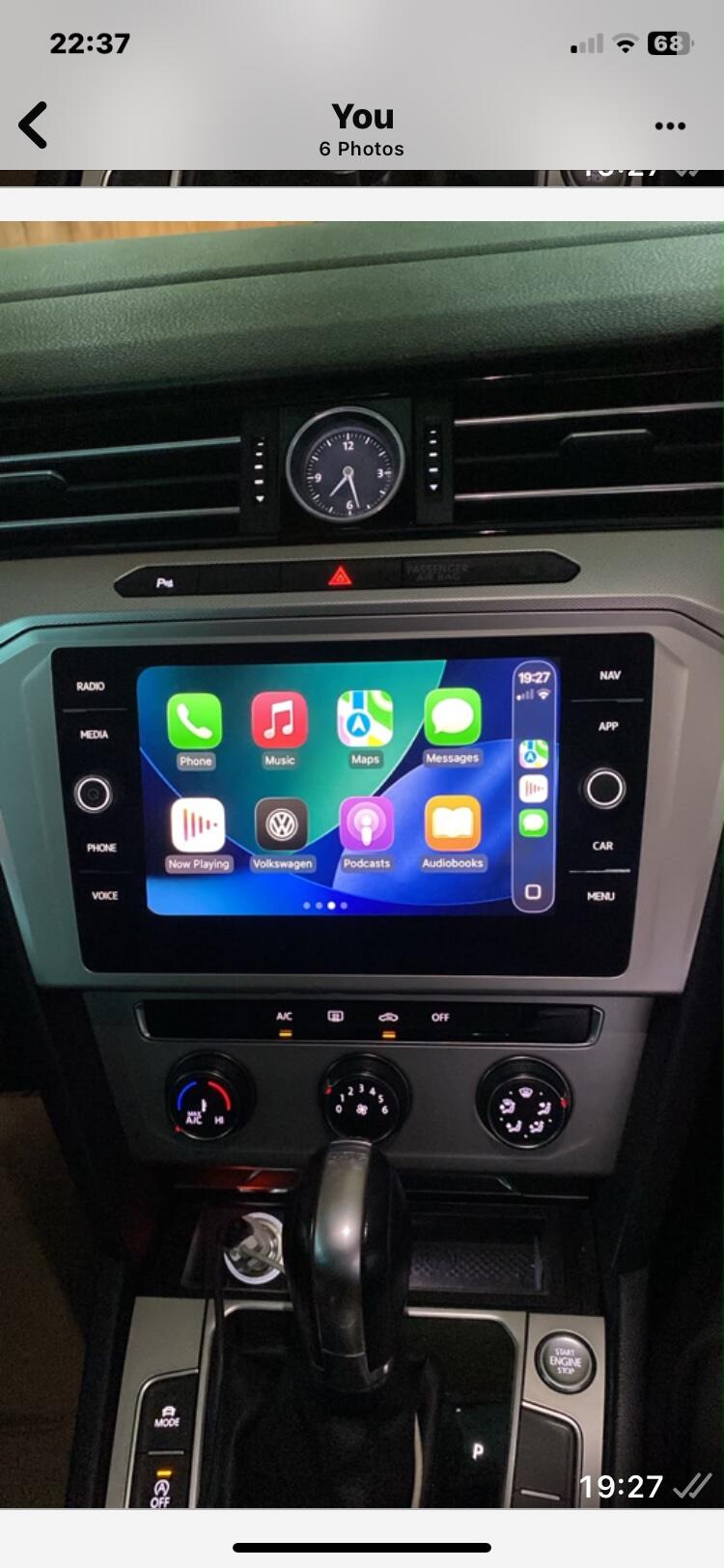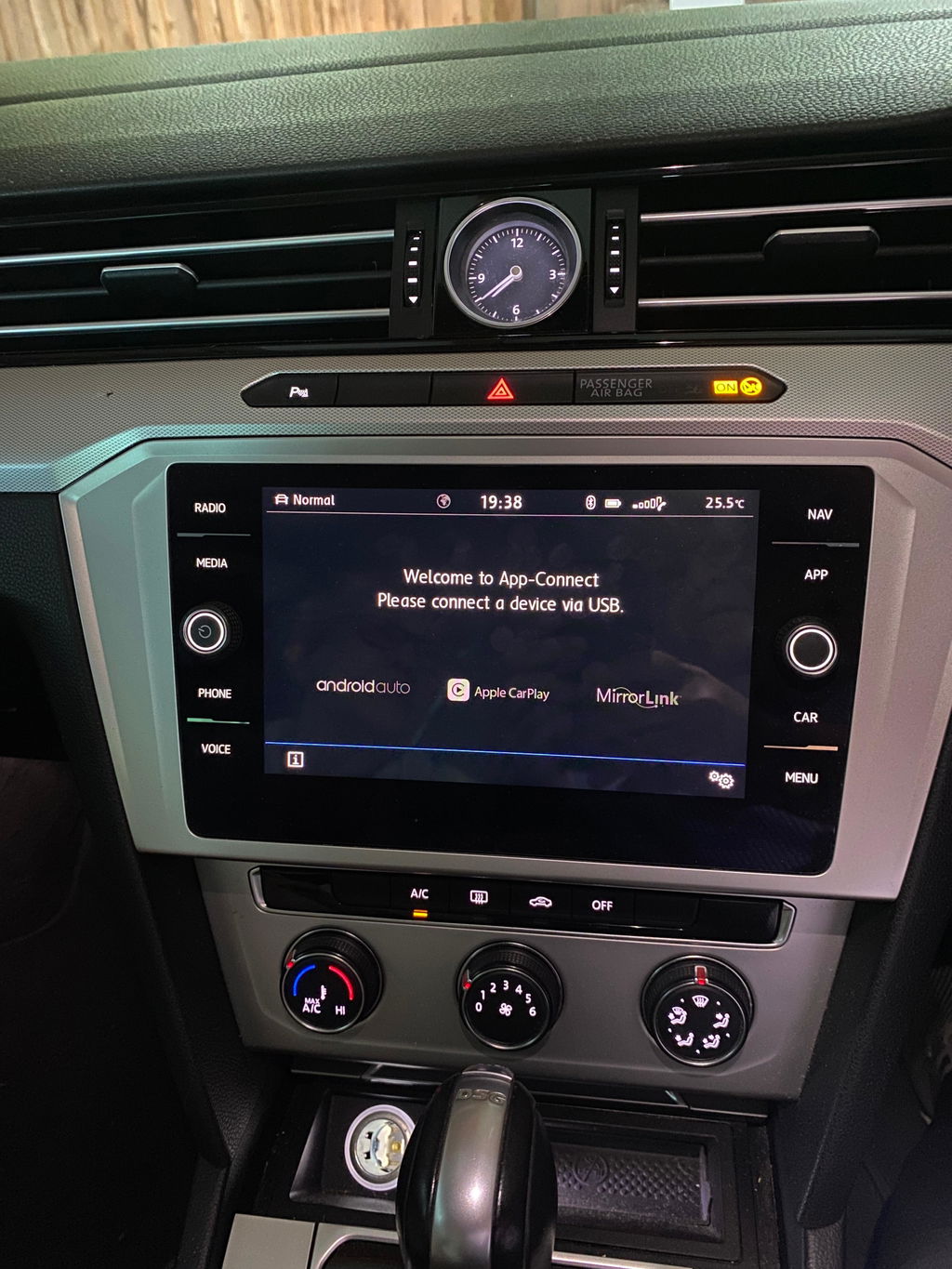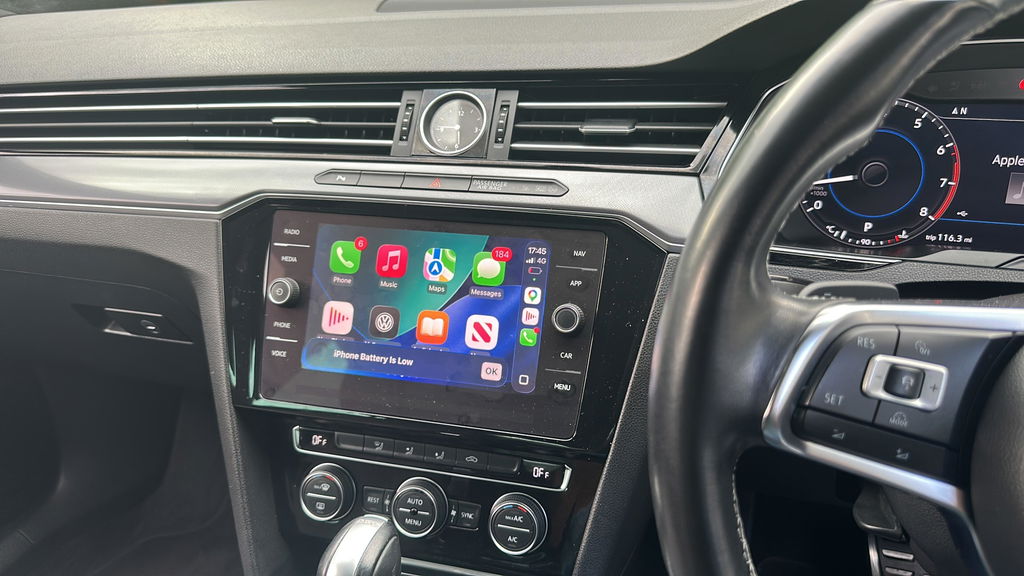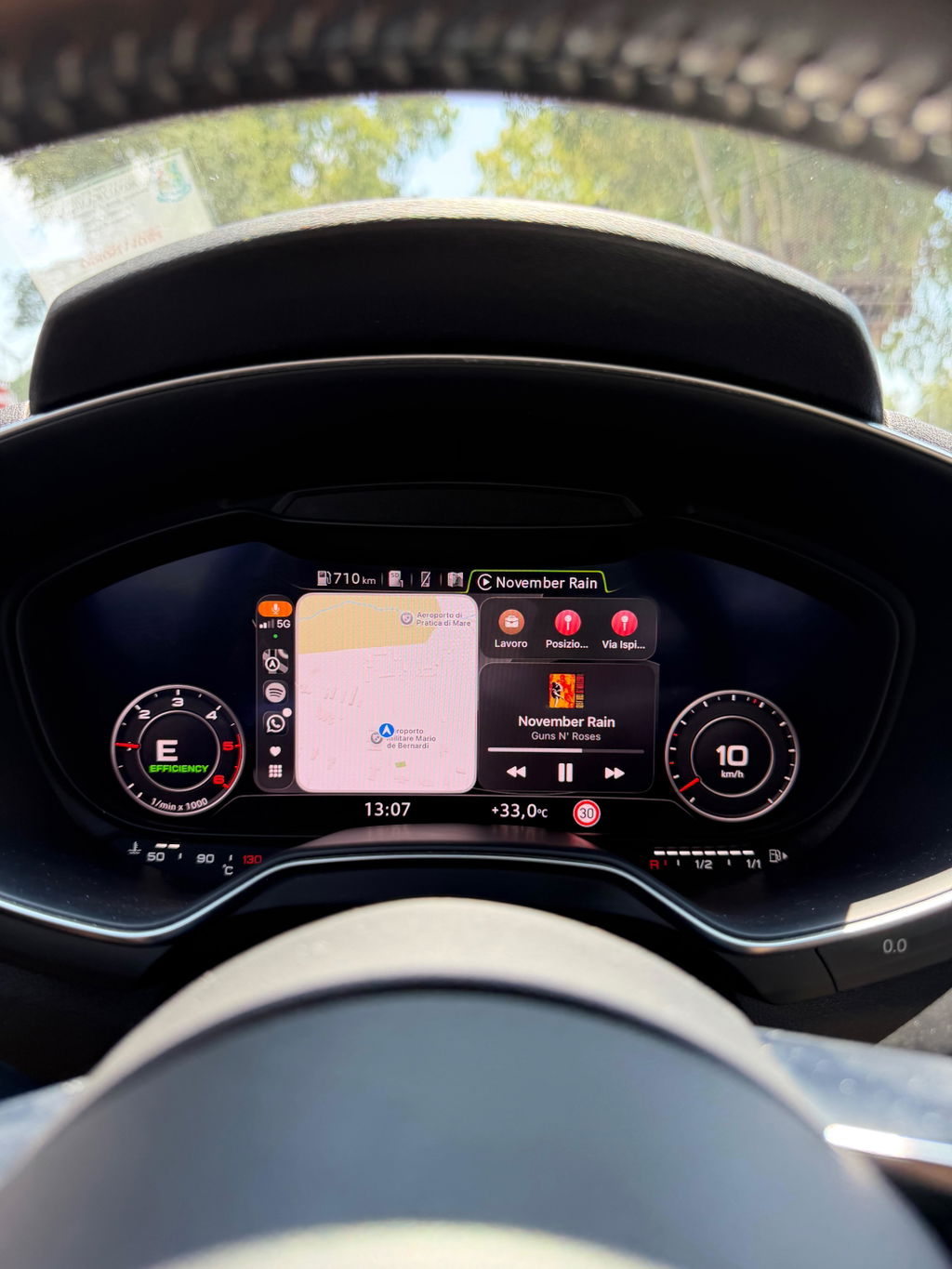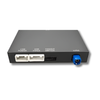


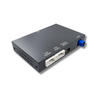


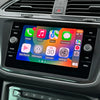


How to Enable Apple CarPlay and Android Auto in Your Compatible SEAT MIB2 Vehicle
If you want Apple CarPlay or Android Auto in your SEAT without replacing the original head unit, a compatible SEAT MIB2 system can make it a quick and straightforward upgrade. This guide explains how to check whether your vehicle is supported, what to look for on the software screen, and what to know before ordering.
For many drivers, this is one of the best infotainment upgrades you can make. It brings modern navigation, media, calls and messaging to the factory screen while keeping the interior looking original.
What this upgrade gives you
- Wired Apple CarPlay
- Wired Android Auto
- Access to maps, music, messages and calls through the factory display
- A simple SD card-based setup with instructions included
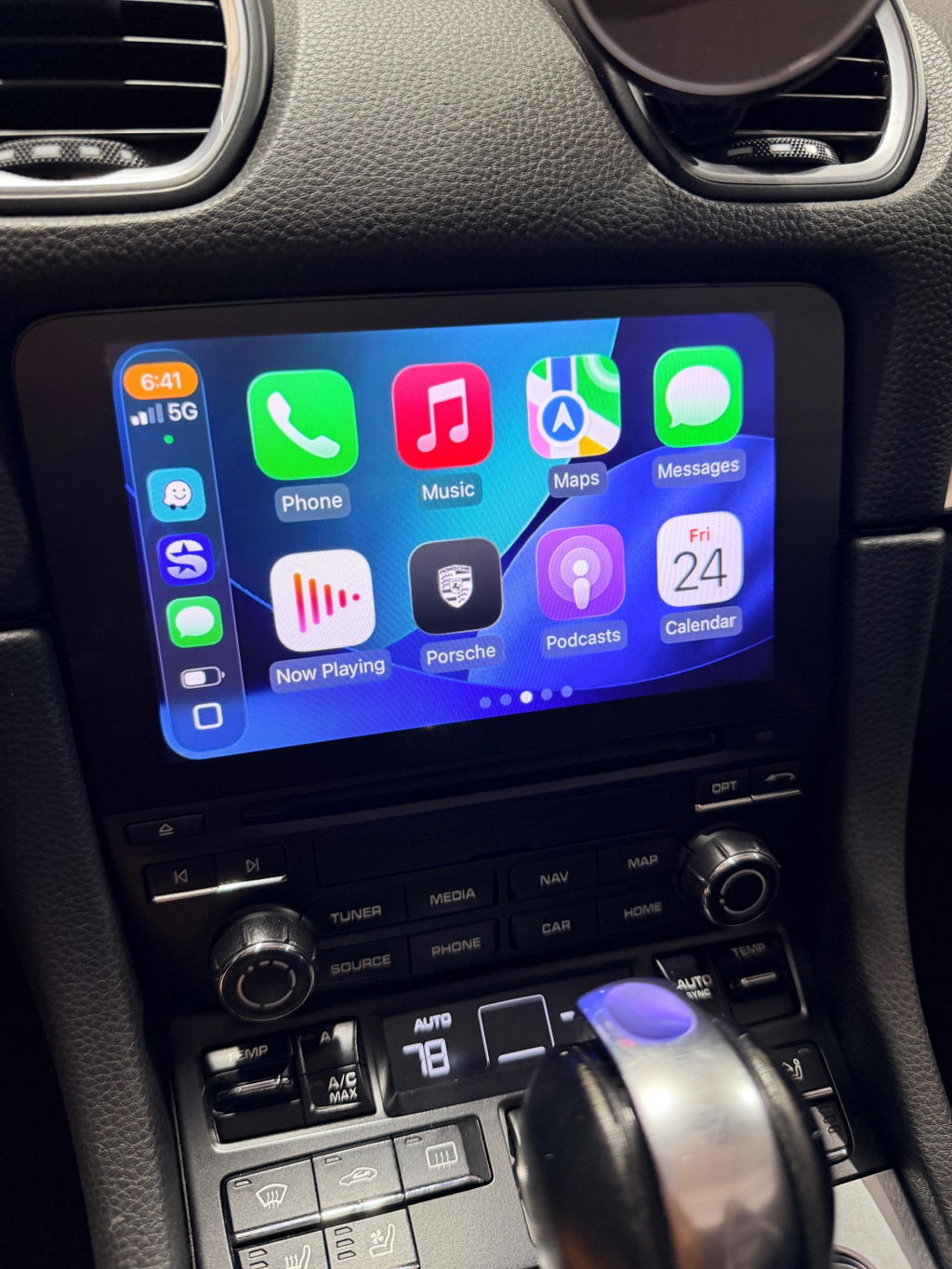
Once set up on a compatible vehicle, you can use apps such as Apple Maps, Google Maps, Waze and Spotify directly from the infotainment screen.
Which SEAT vehicles are compatible?
This guide is for compatible SEAT vehicles from roughly 2015 to 2020 fitted with an MIB2 head unit. The most important thing is not just the vehicle year, but the software version shown in the infotainment system.
If your unit begins with MST2, you are in the right range to continue checking compatibility.
How to check if your SEAT MIB2 unit is compatible
Step 1: Open the software version screen
- Hold the MENU button for 3 seconds
- Select Software update/versions
- Open Installed SW Train Version
Step 2: Check the beginning of the software version
Your software version should begin with MST2.
Examples include:
MST2_EU_SE_PQ_P0363TMST2_EU_SE_ZR_P0468T
Step 3: Check the SD card slot layout
In most cases, your head unit should have two SD card slots labelled SD1 and SD2. If it does, and your software begins with MST2, you are typically in the supported range.
If your unit does not match that setup, it is best to confirm compatibility before ordering.
Step 4: Check the USB socket on early models
If your SEAT is a 2015 or 2016 model, you should also check whether the USB socket is suitable for Apple CarPlay. If your vehicle has dual USB ports, you can usually skip this step.
Important note for some software versions
If your version ends with P02xxT, there is an additional step required after the software setup. In those cases, a separate OBD-based programming step is needed to make Apple CarPlay and Android Auto display correctly on the head unit.
This means some early vehicles become a two-step process rather than a simple one-step setup.
What you receive
Email option
Your order data is sent by email, usually within 1 working day. You will need your own Windows or Mac computer and a spare SD card between 4GB and 32GB.
SD card option
You receive a pre-loaded SD card by post with instructions included. This is the easiest option because it is essentially plug-and-play and does not require a computer.
Setup overview
- Check that your software version begins with MST2
- Confirm your unit has SD1 and SD2
- If your car is a 2015 or 2016 model, verify the USB socket is suitable
- If your version ends with P02xxT, be aware that an extra programming step will be required
- Choose email delivery or a pre-loaded SD card
- Follow the included instructions to complete setup
Why SEAT owners choose this upgrade
Apple CarPlay and Android Auto make the original infotainment system far more useful day to day. Instead of relying on older built-in functions, you can use the apps you already know on your phone through the factory screen.
- Better navigation with Apple Maps, Google Maps or Waze
- Easier access to music and podcasts
- Hands-free calls and messaging
- A factory-style solution without replacing the head unit
Frequently asked questions
Will this work on every SEAT from 2015 to 2020?
No. You should always check the software version and head unit layout first. Compatibility depends on the unit itself, not just the vehicle year.
What if my software starts with MST2?
That is the correct range to continue checking, but you should still confirm the SD slot layout and USB requirement on some early cars.
What if my version ends in P02xxT?
You will need an additional programming step after the software setup in order to display Apple CarPlay and Android Auto correctly.
Do I need specialist tools?
No specialist tools are required for the main setup itself, but some vehicles with certain software versions require an additional OBD-based programming step afterwards.
Is it wired or wireless?
The factory setup is wired.
Ready to check your SEAT MIB2 system?
If your SEAT has a compatible MIB2 unit, getting Apple CarPlay and Android Auto working can be quick and straightforward. The key first step is checking your Installed SW Train Version and head unit layout before you order.